 SimSmsBox
 Quick answer: When an authenticator app code keeps getting rejected even though you typed it correctly, the cause is almost always clock drift — your phone’s time is slightly out of sync with the server. Authenticator codes (TOTP) are generated from the current time, so if your phone’s clock is off by more than about 30 seconds, every code looks wrong. The fix is to enable automatic date/time on your phone, or use the app’s built-in time-sync option.
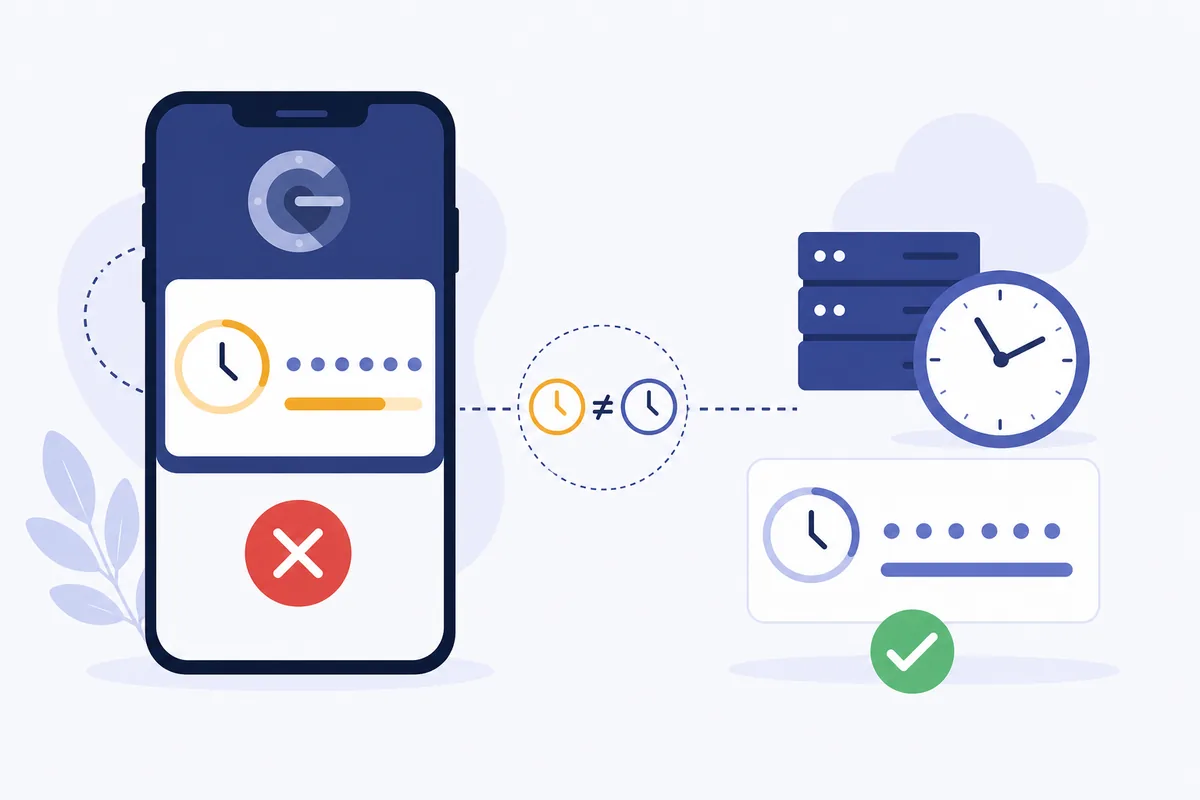
You open your authenticator app, carefully type the six digits, and get “invalid code.” You try again — still wrong. The code isn’t broken and you’re not making a mistake; the app and the server just disagree about what time it is. Here’s why that happens and how to fix it in a minute.
1. Why time is the culprit
Authenticator apps use TOTP — Time-based One-Time Passwords. Both your app and the server hold the same secret key and combine it with the current time to compute the same six-digit code, which rotates every 30 seconds. There’s no network between them; they just trust that their clocks match.
If your phone’s clock drifts — even by a minute — your app computes the code for the wrong time slice, and the server rejects it. The math is fine; the clocks aren’t aligned. This is the one failure mode unique to time-based codes, unlike a texted code that’s simply sent to you.
2. How to fix it
The fix is to realign your phone’s clock:
- Turn on automatic date & time in your phone’s settings (set time/time zone automatically). This is the permanent fix for most cases.
- Use the app’s time-sync feature: Google Authenticator has “Time correction for codes,” which resyncs without changing your phone clock.
- Check the time zone, not just the time — a wrong zone throws it off too.
- Restart the app after correcting the time so it recomputes from the corrected clock.
| Symptom | Likely cause | Fix |
|---|---|---|
| Every code rejected | Clock drift | Enable auto time / app time-sync |
| Codes worked, now don’t | Time drifted over weeks | Re-enable auto time |
| Wrong after travel | Time zone off | Correct time zone |
3. When it’s not the clock
If your time is correct and codes still fail, consider:
- Wrong account entry: you’re reading the code for a different account in the app.
- Code expired mid-entry: it rotated while you typed — wait for a fresh one and enter quickly.
- The app was restored to a new phone incorrectly, so its secret no longer matches. In that case, use your backup codes or recovery, since re-enrollment may be needed.
But statistically, clock drift is the answer the overwhelming majority of the time.
4. What this means if you receive codes online
This is a key contrast worth knowing: authenticator (TOTP) codes are generated on your device from the clock — they are not sent anywhere, so they can’t be received on a phone number at all. An online number receives texted codes, which is a different mechanism entirely.
So if a login uses an authenticator app, receiving codes online without a SIM doesn’t apply — there’s no message to catch, and time-sync is what matters. When the second factor is instead an SMS code, an online number can receive it, and clock drift is irrelevant because the code is simply delivered to you.
FAQ
Q: Why does my authenticator code say invalid when I typed it right? Almost always clock drift — your phone’s time is out of sync with the server. Enable automatic date & time or use the app’s time-correction feature.
Q: Does an authenticator code get sent to my phone? No. It’s generated locally from a shared secret and the current time, with no network involved. That’s why time sync matters and why it can’t be received on another number.
Q: I fixed the time and it still fails — now what? Make sure you’re reading the right account’s code and entering it before it rotates. If it still fails, the app’s secret may not match the server; use backup codes or recovery to re-enroll.
Takeaway
An authenticator code that’s rejected despite being typed correctly is almost always clock drift — the app and server disagree on the time that generates the code. Enable automatic date/time or the app’s time-sync and it works again; and remember these codes are generated on-device, not sent, so unlike an SMS code they can’t be received on a number.