 SimSmsBox
 DoorDash requires a phone number for both customer and Dasher signups — the SMS code is the gate before you can place or accept orders. If your local number can’t receive it, or you want to verify with an overseas number, you can finish with a number that receives SMS. Follow the steps below.
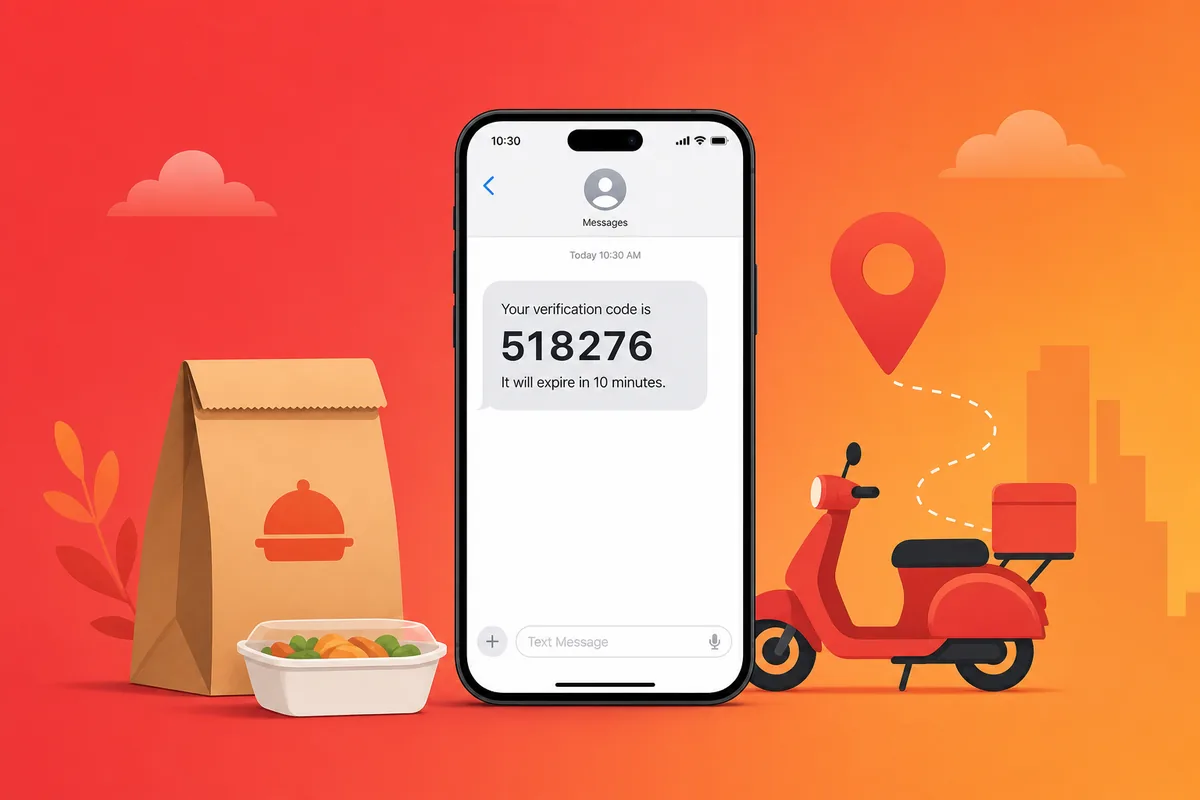
Why DoorDash verification gets stuck
- Phone number = account identity: order updates and driver contact depend on it.
- Virtual / VOIP numbers get rejected: prefer a real SIM, see Real SIM vs virtual numbers.
- Region mismatch: US service areas work best with a US real-SIM number.
Register DoorDash with SimSmsBox
Step 1: Prefer a US real-SIM number
Step 2: Order a number
curl -X POST https://api.simsmsbox.com/api/sms/orders/purchase -H "X-API-Key: psk_xxx" -H "Content-Type: application/json" -d '{"service":"doordash","country":"US","cardKind":"physical","rentDays":30}'
# -> { "orderId": 173, "phone": "+1xxxxxxxxxx", ... }
Step 3: Enter the number and request the code
Step 4: Poll to retrieve the code
curl https://api.simsmsbox.com/api/sms/orders/173 -H "X-API-Key: psk_xxx"
# -> { "status": "received", "latestCode": "518276" }
For cadence, see Automated ordering and polling.
Step 5: Enter the code to finish
Put latestCode back into DoorDash to complete verification.
Common issues and fixes
| Symptom | Cause | Fix |
|---|---|---|
| No SMS at all | Range risk-flagged / no upstream stock | Cancel and swap, see SMS code not arriving |
| ”Number can’t be used” | Virtual / VOIP number rejected | Switch to a real SIM |
| ”Try again later” | Too many requests | Wait, or switch numbers |
Wrap-up
DoorDash verification usually clears with a clean US real SIM. Request via SMS and poll patiently. Further reading: How to choose an SMS platform.